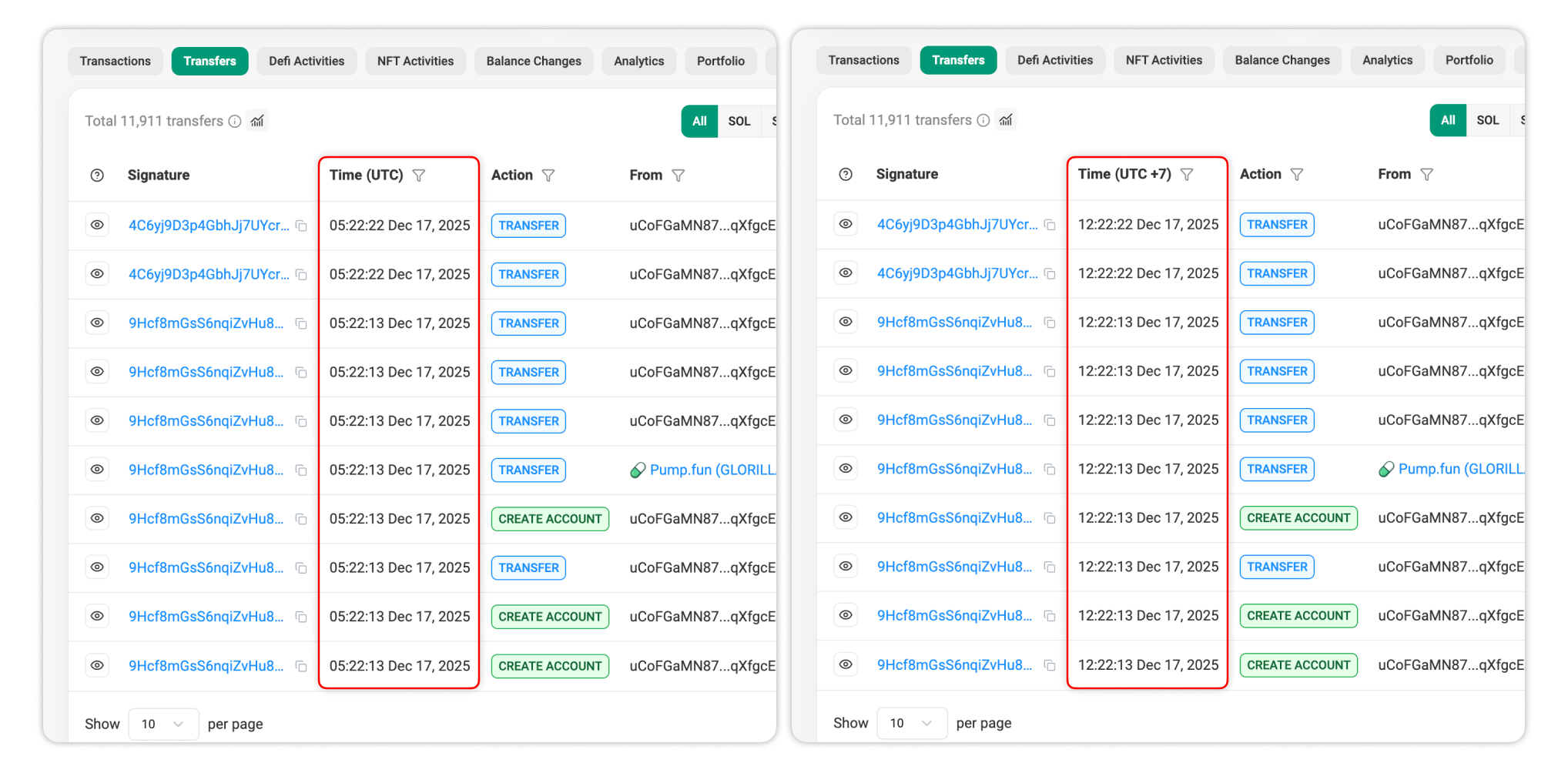
Solscan Site Settings allow you to customize the default display and behavior of the Solscan explorer. These options control how on-chain data is presented across the platform, helping tailoring views for clarity, efficiency, and analysis.
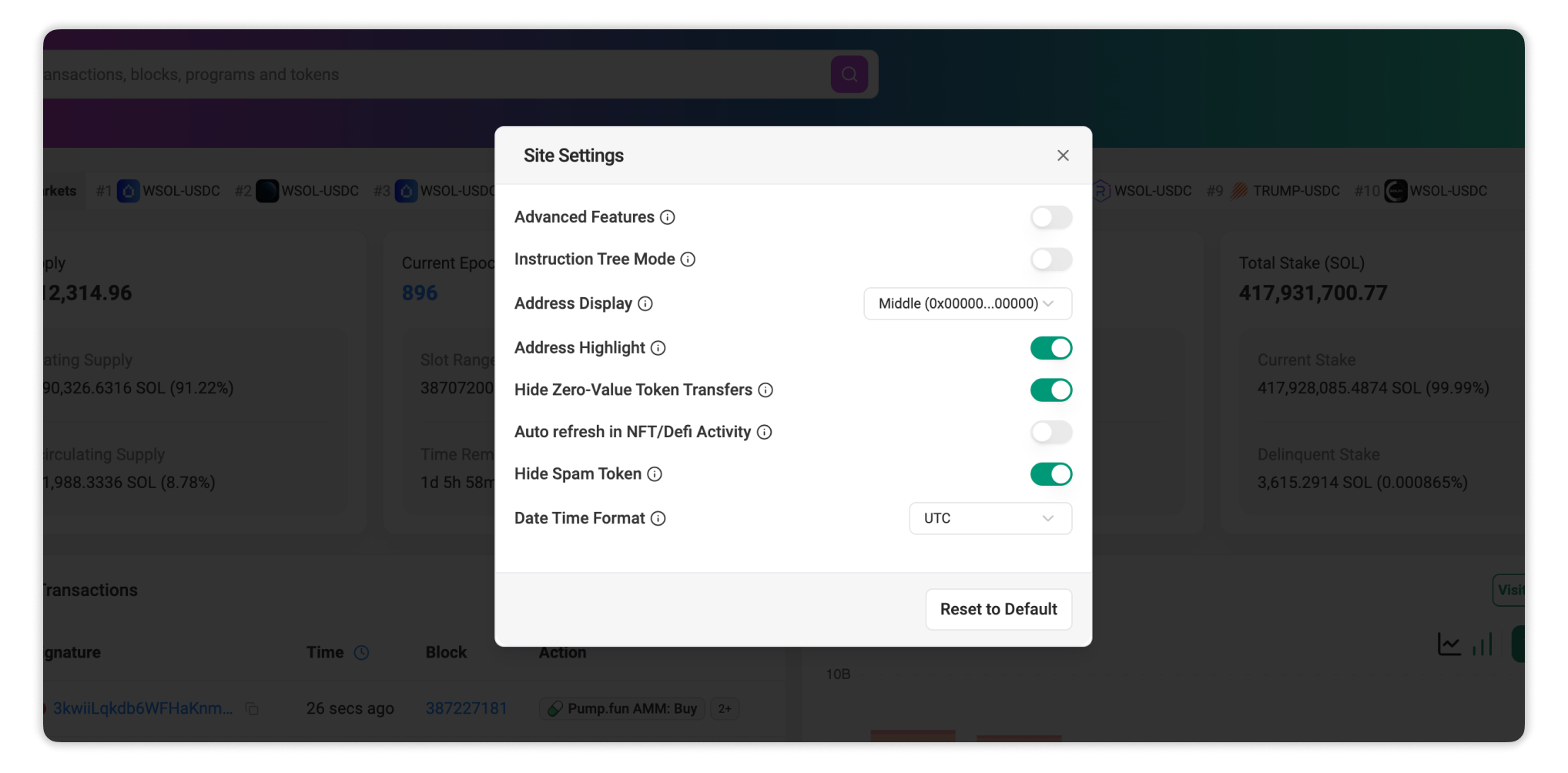
How to Access Site Settings
Solscan Site Settings can be accessed directly from the homepage:
- Open Solscan.io
- Click the Dark/Light Mode button (next to the Solana logo at the top right of the website).
- Choose Site Settings.
All changes are applied immediately.
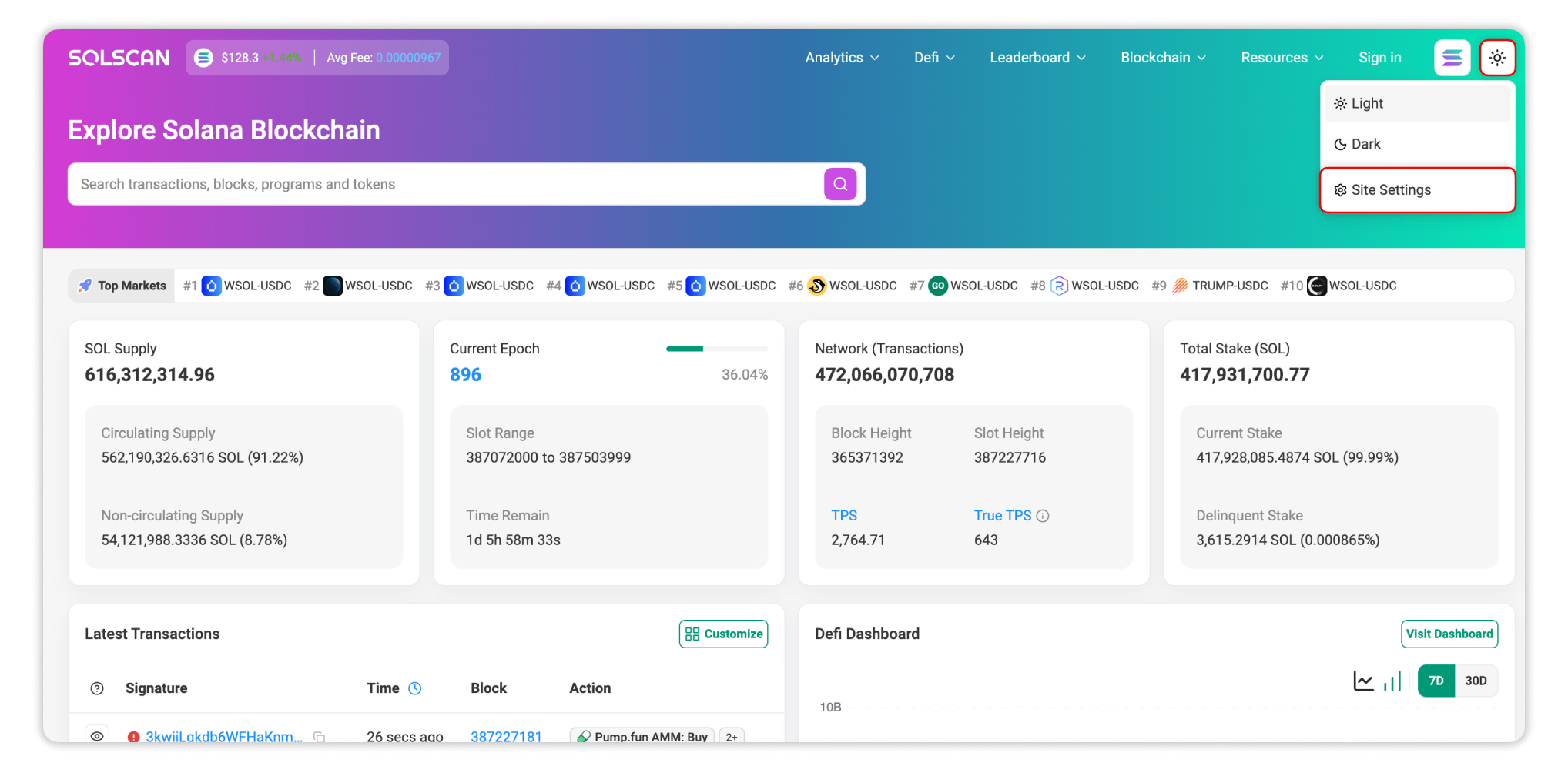
Background Themes
Solscan supports display of Light and Dark Mode themes to accommodate different environments and preferences. Theme changes apply instantly across the platform.
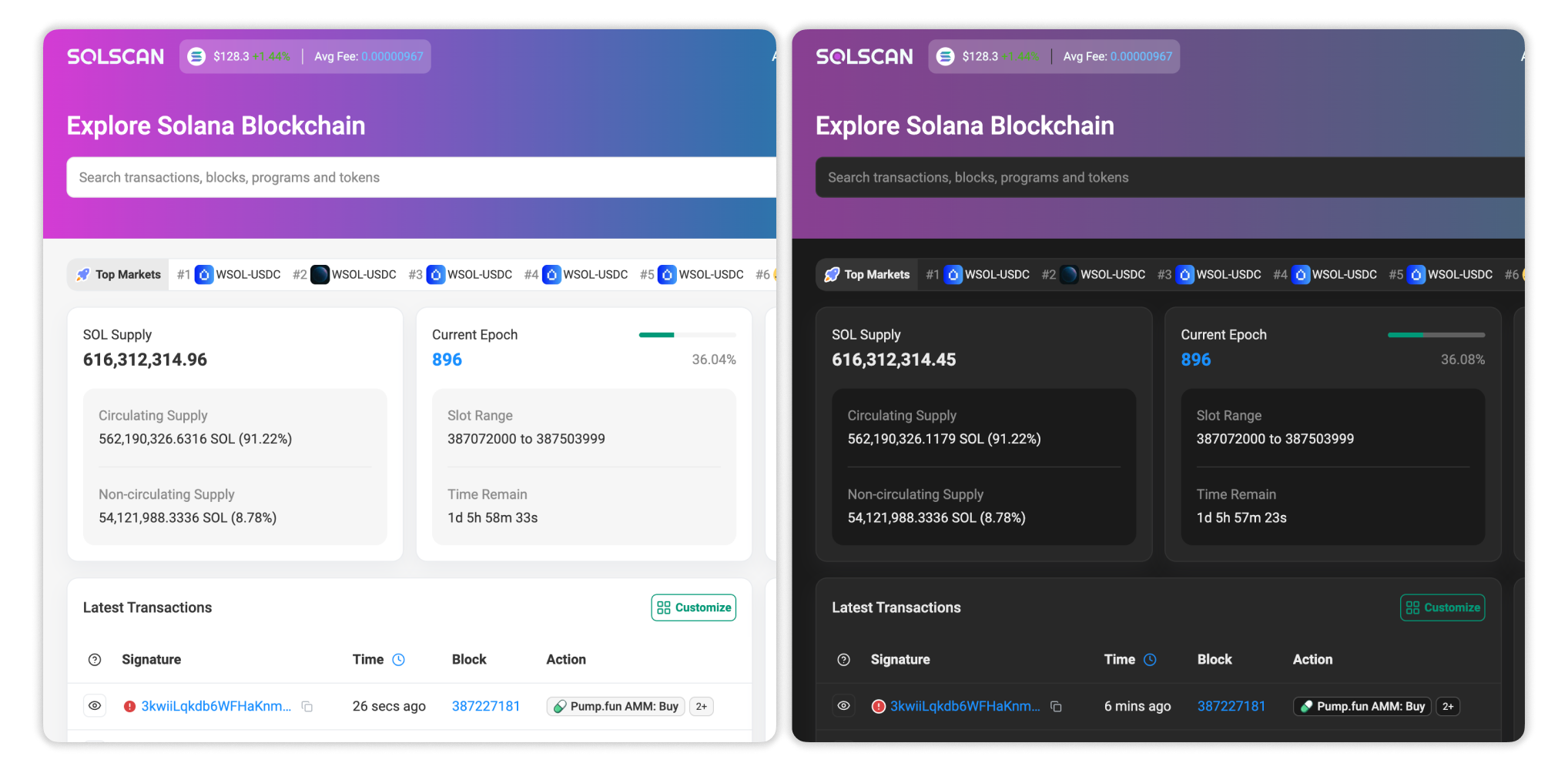
Site Settings
1. Advanced Features
Advanced Features provide enhanced visibility and control within the Transaction Details page:
- Multi-Color Address Highlighting: You can highlight multiple addresses with different colors when viewing a transaction. This is useful for researching complex transaction logs and visually separating key addresses.
New Feature: Color-Highlight Addresses on Solscan! 🎨
— Solscan (@solscanofficial) March 12, 2025
Easily assign colors to addresses in the Transaction Details page for better clarity, making it simpler to track the flow of funds and analyze transaction paths - especially in Instruction Details.
Hover over any addresses… pic.twitter.com/JdY8RfHGaZ
- Auto Expand Instruction Details and Program Logs: This will automatically expands all instruction details and program logs when opening a transaction details page.
2. Instruction Tree Mode
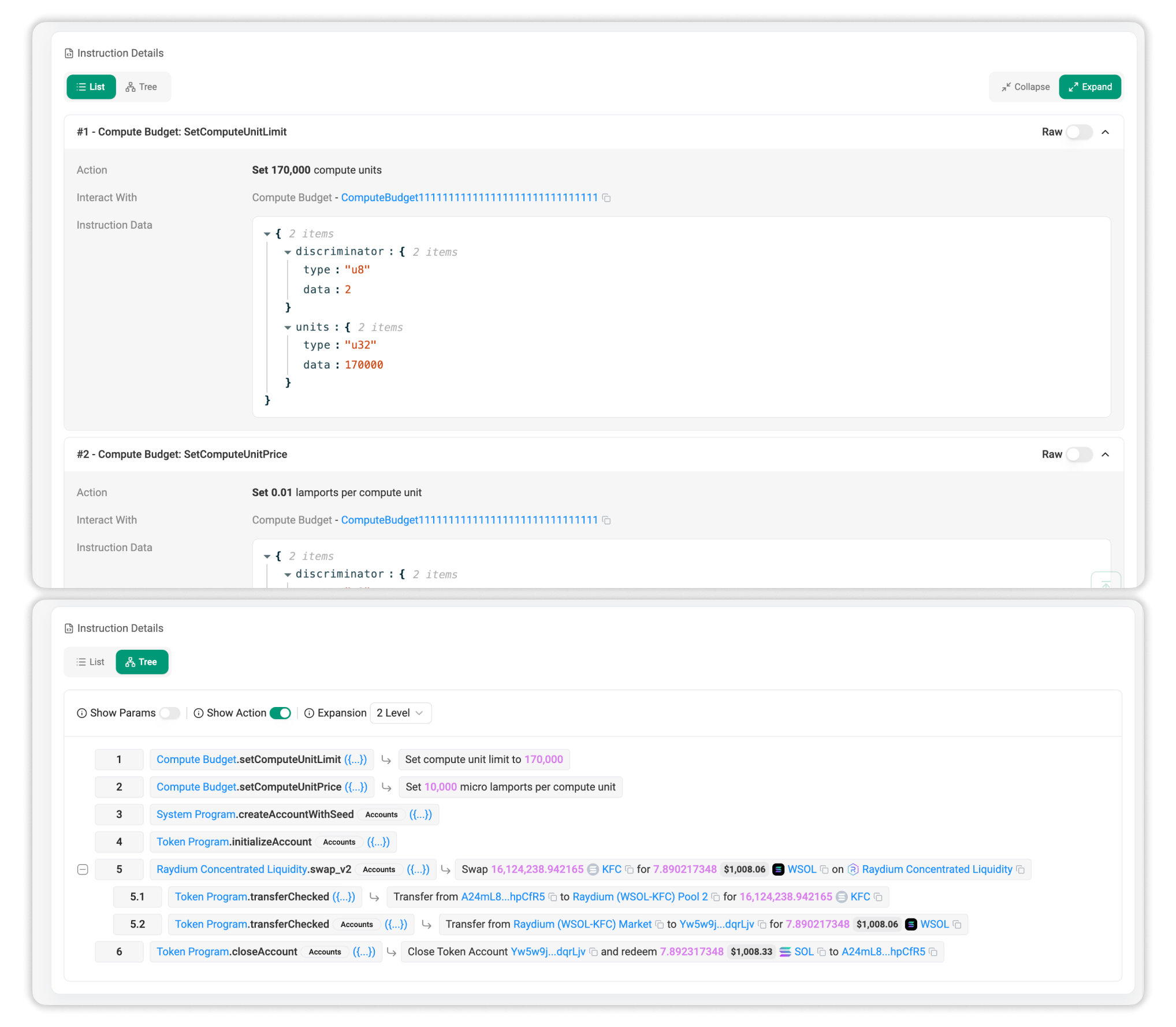
Instruction Tree Mode changes the layout of instruction details from a linear list into a hierarchical tree structure. This view makes it easier to understand execution flow, parent-child relationships between instructions, and nested program calls within complex transactions.
3. Address Display
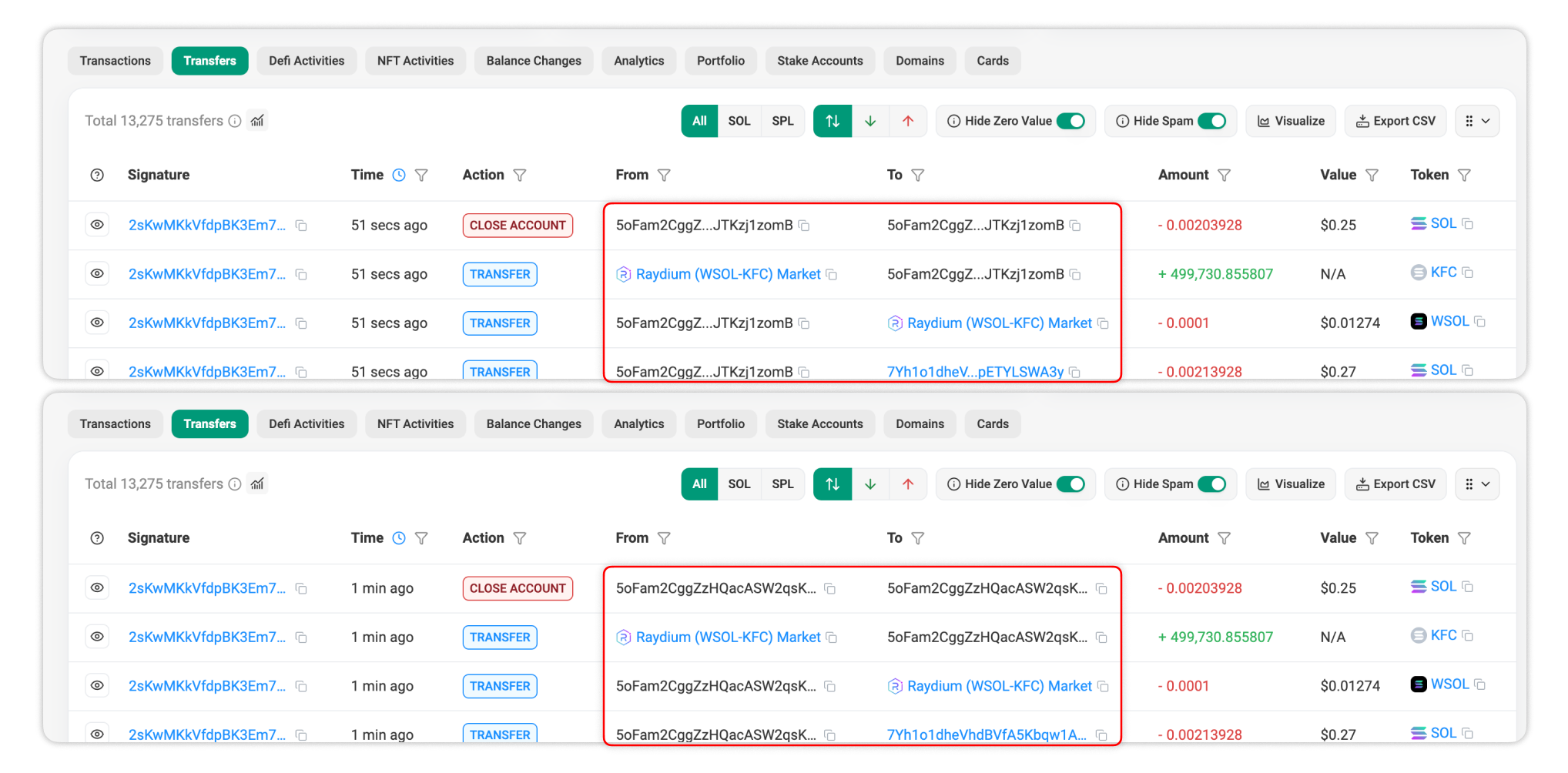
Address Display controls how addresses are shown across Solscan. By default, addresses will be displayed showing both the first and last few characters (middle truncation). You can also switch to back truncation, which will allow you to quickly find a given address using CTRL+F.
4. Address Highlight
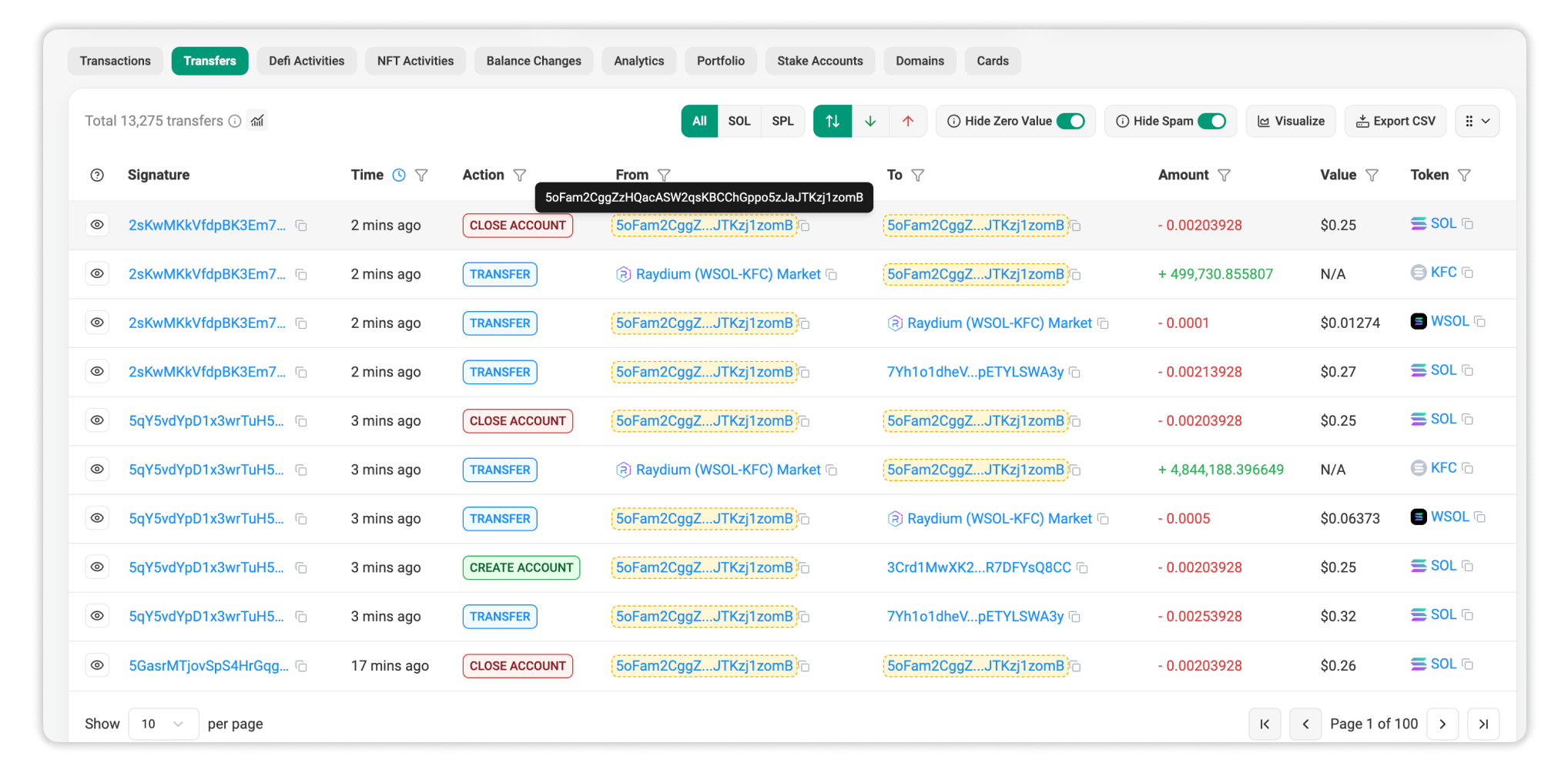
Address Highlight automatically highlights all occurrences of the same address when the user hovers over it with the cursor. This makes it easier to identify where a specific address appears within a page, especially in tables or transaction details involving multiple participants.
5. Hide Zero-Value Token Transfers
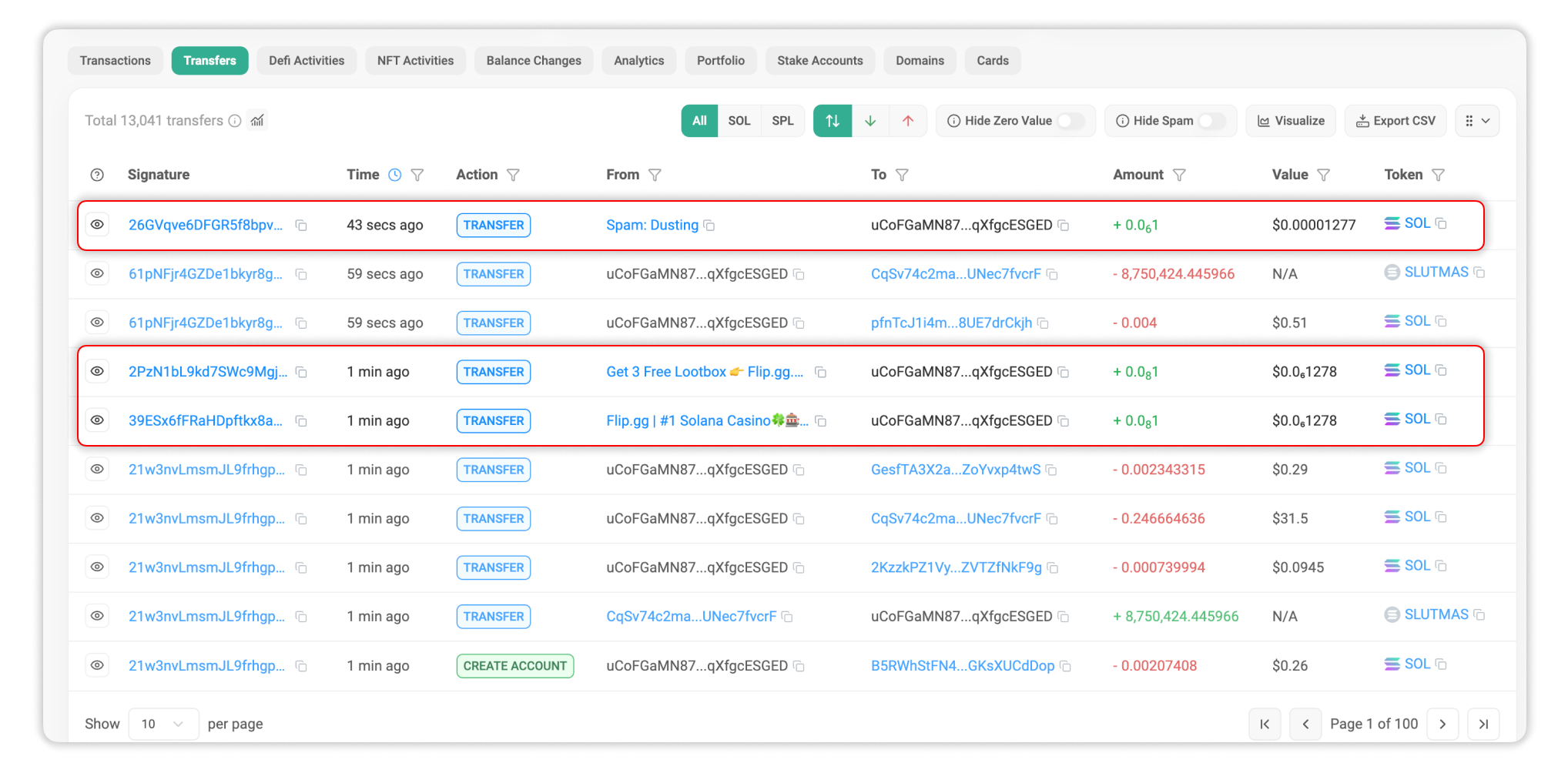
When enabled, this setting automatically hides zero-value token transfers across all transfer tables. This helps reduce visual noise and keeps views focused on transfers that involve actual value movement.
6. Auto Refresh in NFT / DeFi Activity
Auto Refresh automatically updates NFT and DeFi activity pages without requiring a manual page reload. This is useful for monitoring active wallets, marketplaces, or protocols where new events occur frequently.
7. Hide Spam Token
Hide Spam Token automatically filters out transfers involving tokens identified by the Solscan team as Spam, Scam, or Suspicious. Enabling this setting improves signal quality by removing irrelevant or potentially misleading token activity from views.
8. Date & Time Format
You can configure how timestamps of blocks and transactions across Solscan are displayed by switching between UTC or your local time zone.